This interview guide is for educational and informational purposes only. It is designed to help readers prepare, but it does not guarantee any interview result, hiring decision, offer, or outcome. Interview questions, hiring criteria, and preferred answers can vary by employer, interviewer, industry, location, and time. All answers, examples, and explanations in this guide are suggested examples for interview preparation, not definitive answers or instructions for professional practice. They are based on research and judgment, are provided without warranties of any kind, and should be adapted to the question, role, and applicable laws and professional requirements. Diagrams are simplified illustrations intended to highlight the main concepts and their relationships; actual situations, systems, and practices may be more complex. Alternative approaches may be equally valid or better suited to a particular question, context, or interviewer. To the fullest extent permitted by applicable law, the contributors and publisher are not liable for decisions made, actions taken, or losses incurred based on this guide.
State Laws and Professional Responsibilities
Laws and requirements governing an occupation vary by state and jurisdiction. You are responsible for checking the current laws, licensing requirements, and scope-of-practice rules that apply to your location and role, and for ensuring that your answers and actions comply with them. Adapt examples in this guide to those requirements. This guide is not legal advice.
Identity, Image, and Privacy Notice
To respect individual privacy, some names, profile photographs, avatars, biographical details, and other identifying information displayed in this guide may be replaced with pseudonyms, licensed stock images, illustrative avatars, composite images, or representative descriptions. Unless a person is expressly identified as an actual contributor, a displayed name, image, or profile should not be understood as depicting or identifying a specific candidate, interviewer, employee, or other real individual. These representations are provided for editorial and illustrative purposes only and do not imply endorsement, employment, participation, or affiliation with this guide or any company mentioned in it. Any resemblance to an actual person is coincidental.
Company Notice
This guide is an independent educational resource and is not affiliated with, endorsed by, sponsored by, or approved by the company named in this guide. Company names identify reported interview experiences or the employer context of clearly labeled original practice exercises. Interview practices can change without notice, and inclusion of company-specific content does not mean these questions are official, complete, or guaranteed to be asked. To the fullest extent permitted by law, the author, contributors, and publisher are not responsible for outcomes related to use of this material.
Content Accuracy and Verification
To the fullest extent permitted by applicable law, we do not represent or warrant that interview guides, questions, answers, examples, or diagrams are accurate, complete, current, error-free, or suitable for any particular purpose. You are responsible for independently reviewing and verifying the information before relying on it.
Questions or comments?
Contact us for general questions, or share feedback, technical corrections, and comments with the community.
71. What interactions can Tableau dashboard actions provide?Business Intelligence ToolsEasy
i Question Details
Distinguish Tableau filtering, highlighting, and navigation actions from a static filter.
Short Interview Answer (30-60 seconds)
Tableau dashboard actions let one view respond to an interaction in another view. A filter action narrows a target view to matching data. A highlight action keeps the broader context visible but emphasizes matching marks and dims the others. A Go to Sheet action moves the user to another worksheet, dashboard, or story. The key difference from a normal filter is that an action is triggered by interacting with a source mark, while a normal filter control directly limits the displayed data using selected filter values. help.tableau.com
Detailed Explanation
Tableau dashboard actions make a dashboard interactive by letting an action start from a user's interaction with a source view. A filter action can narrow target views to matching data. A highlight action keeps the wider context visible but emphasizes related marks. A Go to Sheet action moves the user to another worksheet, dashboard, or story. This differs from a normal filter control because the action is triggered by interacting with a mark, while the filter control directly restricts the displayed data according to selected filter values. help.tableau.com
Useful Questions to Ask the Interviewer
Do you want me to focus only on filter, highlight, and navigation actions, or briefly mention Tableau's other action types?
Should I explain the difference from a normal filter control from the dashboard user's point of view?
Do you want me to discuss common action triggers such as hover, select, and menu?
How to Explain It in an Interview
Start with the basic model: an action has a source interaction and a response. Tableau can run actions when users hover over marks, select marks, or use a menu, depending on the action type and configuration. The action can then change one or more target views or move the user somewhere else. help.tableau.com
1. Filter action A filter action uses data values from the source view as filters on the target sheet. If a user selects a mark, Tableau can pass relevant source-field values to the target so that the target displays only matching data. The source view therefore becomes an interactive filtering control. For filter actions, also define what should happen when the selection is cleared and verify that the source and target fields are mapped correctly. help.tableau.com
2. Highlight action A highlight action is different because it does not remove the unrelated marks. It calls attention to matching marks and dims the others. This is useful when the analyst wants users to focus on a subset while still seeing the surrounding data for comparison and context. Tableau can configure the source sheets, target sheets, trigger, and fields used for matching. help.tableau.com
3. Navigation action For navigation inside a workbook, Tableau provides the Go to Sheet action. It can move a user to another worksheet, dashboard, or story in the same workbook. This is useful when a summary view should lead to a more detailed analytical view without putting every chart on one dashboard. Tableau also provides Go to URL when the destination is an external resource rather than another sheet in the workbook. help.tableau.com
4. Difference from a normal filter control A normal filter control directly lets a user choose which values are included or excluded from a view. A filter action is event-driven: interaction with marks in a source view supplies values that Tableau uses to filter a target view. This means a chart itself can become the filtering mechanism. Both can restrict data, but their user interaction and dashboard purpose are different. help.tableau.com
5. Other Tableau actions Tableau also supports Change Parameter and Change Set Values actions, which let interactions with marks modify a parameter or the values in a set. These can support more advanced analytical behavior. They are useful to mention after answering the core distinction between filtering, highlighting, and navigation. help.tableau.com
6. Validation and performance checks Before publishing, test the action from each intended source sheet and confirm that every target responds correctly. Check single and multiple selections where relevant, cleared-selection behavior, field mappings, and interactions between multiple actions. Tableau executes different action types in a defined order, so combined actions should be tested as one user flow rather than separately. Also check dashboard responsiveness because one interaction can cause several target views to update. help.tableau.com
A strong interview conclusion is: use a filter action when unrelated data should disappear, a highlight action when the full context should remain visible, and a Go to Sheet action when the user should move to another analytical view. Use a normal filter control when users simply need a persistent way to restrict displayed values.
Technical Approach
Identify the source view and the user interaction that should start the behavior.
Decide what the target response should be: restrict data, emphasize related marks, or move to another view.
Choose a filter action for restriction, a highlight action for emphasis, or a Go to Sheet action for in-workbook navigation.
Choose an appropriate trigger such as hover, select, or menu where supported.
Configure the intended target sheet or sheets and any relevant field mappings.
For filtering, define the behavior when the selection is cleared.
Test the complete interaction, including combinations with other dashboard actions, before publishing.
Practical Insights
There is no Big-O coding complexity for this question. The practical cost is dashboard responsiveness and usability. One action can cause several target views to query or redraw, so a dashboard with many complex targets may feel slower. Highlighting preserves context but can leave the view visually busy. Filtering simplifies the target but hides nonmatching data. Navigation keeps the current dashboard simpler but requires the user to move to another view. The best action is the one that matches the analytical task with the least confusing interaction.
Why Interviewers Ask This
Interviewers want to see whether the candidate understands Tableau dashboards as interactive analytical experiences rather than only collections of charts. The key judgment is whether the candidate can distinguish filtering, highlighting, and navigation and explain how an action-driven interaction differs from a normal filter control. This matches the exact Business Intelligence Tools question and audit requirement.
Common interview mistakes
Common mistakes are treating filtering and highlighting as the same behavior, saying that a highlight action removes nonmatching data, confusing Go to Sheet with Go to URL, describing every normal filter as a dashboard action, or forgetting that filter actions pass source-field values to target sheets. Another mistake is adding many actions without testing their combined behavior, cleared-selection behavior, field mappings, and dashboard responsiveness.
Interview tip
Use a simple three-part contrast: filter changes which data is shown, highlight changes visual emphasis while keeping context, and Go to Sheet changes where the user goes. Then explain that dashboard actions are triggered through interaction with a source view, while a normal filter control directly restricts displayed values. Mention URL, parameter, and set actions only after the core answer is clear.
Interviewer may ask next
What should you check if a Tableau filter action gives an unexpected result after the user clears the selected mark?
First check the filter action's clearing-selection setting. Tableau can be configured to leave the filter, show all values, or exclude all values when the selection is cleared. Then verify the source and target sheets, field mappings, data types, and whether the action is using all fields or selected fields. Finally, test the exact interaction again with the intended source marks. help.tableau.com
When would you choose a highlight action instead of a filter action?
Choose a highlight action when users should focus on related marks while still seeing the surrounding data for context and comparison. Choose a filter action when unrelated data should be removed from the target view so the user can analyze only the matching subset. The tradeoff is context versus simplification: highlighting preserves context but may leave a busier view, while filtering creates a cleaner subset but hides nonmatching information. help.tableau.com
72. What part does Power Query play in preparing Power BI data?Business Intelligence ToolsEasy
i Question Details
Describe Power Query’s role in importing, cleaning, transforming, and combining Power BI sources.
Short Interview Answer (30-60 seconds)
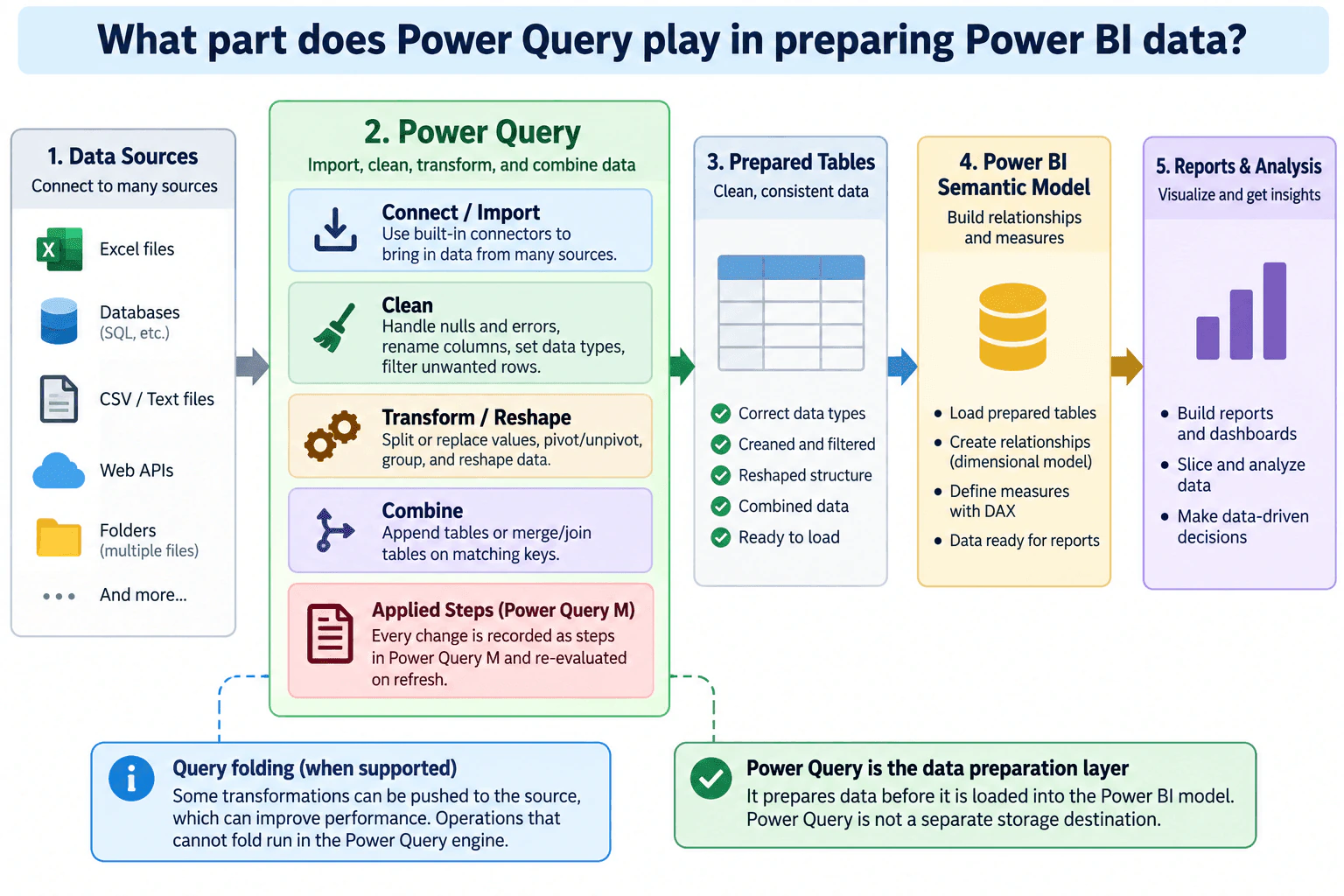
Power Query is the data preparation layer in Power BI. It connects to sources such as Excel files, databases, text files, web APIs, and folders, then imports, cleans, reshapes, and combines the data. Those transformations are stored as repeatable Power Query M steps and are evaluated again when the query refreshes. The prepared tables are then loaded into the Power BI semantic model, where relationships and DAX measures can be created. In short, Power Query prepares the data before modeling and reporting; it is not a separate storage destination.
Detailed Explanation
Power Query prepares data before it is used in the Power BI semantic model and reports. It connects to different data sources, imports the required data, cleans problems such as nulls, errors, incorrect types, or unwanted rows, and reshapes the structure when needed. It can also combine sources by appending tables or merging them on matching keys. These transformations are recorded as repeatable Power Query M steps. The resulting prepared tables can then be loaded into the Power BI model, where relationships and DAX measures are created for reporting and analysis.
Useful Questions to Ask the Interviewer
What kinds of data sources are being combined in the Power BI solution?
Are there particular data-quality problems, such as nulls, duplicate rows, errors, or inconsistent data types?
What refresh behavior or source latency matters to the users of the report?
Are there transformations that should remain in Power Query, or could some work be performed efficiently by the source system?
How to Explain It in an Interview
Think of Power Query as the preparation stage between raw data sources and the Power BI semantic model.
Connect and import. Power Query uses connectors to access sources such as Excel files, databases, CSV or text files, web APIs, and folders. I select the data needed for analysis instead of bringing in unnecessary fields and rows.
Clean the data. Before modeling, I handle issues that could make later calculations unreliable. Typical steps include handling nulls and errors, setting correct data types, renaming columns clearly, and filtering unwanted rows. I also check that the cleanup has not removed valid records.
Transform and reshape. Power Query can split or replace values, pivot or unpivot columns, group rows, and otherwise reshape source-oriented data into cleaner tables. The aim is to create a consistent structure while keeping the intended row grain clear.
Combine sources. If information is spread across multiple sources, Power Query can append tables when they contain compatible rows or merge tables on matching keys when related columns are needed. I validate the matching keys and resulting row counts because incorrect or non-unique keys can duplicate or lose data.
Keep preparation repeatable. Power Query records the transformation logic as Applied Steps represented by Power Query M expressions. When the query refreshes, those steps are evaluated again against the available source data. This turns repeated manual cleanup into a reproducible preparation process.
Use query folding when supported. Some transformations can be translated into operations that execute at the source. This can reduce work in the Power Query engine and improve refresh performance. Not every connector or transformation supports folding, so I verify it instead of assuming that every step is pushed to the source.
Produce prepared tables. After the Power Query steps complete, the result is a set of cleaned, consistently typed, filtered, reshaped, and, when needed, combined tables that are ready for the Power BI semantic model.
Build the semantic model separately. In the model, I define relationships and, when appropriate, a dimensional or star-schema structure. This is a different responsibility from Power Query: Power Query prepares table data, while the semantic model defines how those tables relate for analysis.
Create calculations in the correct layer. Reusable analytical measures normally belong in the semantic model and can be written with DAX. Power Query M is for preparing data, while DAX measures calculate analytical results in the model's evaluation and filter context.
Build reports and analyze. Reports and dashboards use the semantic model to slice, filter, and analyze the prepared data. Good reports depend on the consistency of the tables produced during the Power Query stage.
Validation is important throughout the workflow. I compare row counts, key uniqueness, null and error patterns, data types, and important totals with a trusted source before relying on the model. I also check refresh failures and source latency so report users understand how current the data is.
The key interview point is that Power Query is the data preparation layer. It connects, imports, cleans, transforms, reshapes, and combines source data before that data is modeled and analyzed. It does not replace the semantic model, DAX, or the underlying source, and it is not a separate storage destination.
Technical Approach
Identify the required Power BI data sources and the data needed from each one.
Connect to and import the required data with Power Query connectors.
Inspect row grain, data types, nulls, errors, and unnecessary records.
Clean and reshape the data with repeatable Power Query steps.
Append compatible tables or merge sources using validated matching keys when combination is required.
Check whether appropriate transformations fold to the source when the connector and operation support query folding.
Validate row counts, keys, types, and important totals against trusted source data.
Produce prepared tables that are ready for the Power BI semantic model.
Define model relationships and reusable DAX measures in the semantic-model layer rather than confusing them with Power Query transformations.
Monitor refresh behavior and failures so the preparation process continues to produce expected results as source data changes.
Practical Insights
The cost depends mainly on how much data Power Query must read and transform and where those transformations execute. Filtering early, selecting only needed columns, and allowing supported operations to fold back to a capable source can reduce work. Large merges, grouping operations, or transformations that must execute in the Power Query engine can make refresh slower. Maintainability also matters: a clear sequence of necessary Applied Steps is easier to troubleshoot than many unnecessary transformations. Refresh duration and source latency should be measured rather than assuming the prepared data is immediately current.
Why Interviewers Ask This
Interviewers want to know whether you understand where Power Query fits in the Power BI workflow and whether you can clearly separate data preparation from semantic modeling, DAX calculations, and reporting.
Common interview mistakes
Common mistakes are treating Power Query and DAX as the same thing, putting semantic measures into the preparation layer without a good reason, changing row grain unintentionally during grouping or merges, joining on non-unique keys and creating duplicate rows, ignoring nulls or data-type errors, assuming every transformation supports query folding, loading unnecessary data, and failing to validate prepared results against a trusted source. Another mistake is describing Power Query as a separate database or storage destination instead of the preparation layer before the semantic model.
Interview tip
Explain the workflow in one line: data sources → Power Query → prepared tables → Power BI semantic model → reports. Then describe Power Query's four core jobs: connect and import, clean, transform or reshape, and combine. Finish by separating Power Query M from DAX and mentioning repeatable Applied Steps, validation, and query folding when supported.
Interviewer may ask next
What would you check after merging two tables in Power Query?
I would verify that the merge keys have the intended data types and uniqueness, compare row counts before and after the merge, inspect unmatched rows, look for unexpected duplication, and validate important totals against the source. If a key that I expected to be unique contains duplicates, the merge can multiply rows and change the table's grain, so I would correct or explicitly account for that before loading the result into the model.
How would your approach change if Power Query transformations made refresh too slow?
I would identify the expensive steps, remove unnecessary rows and columns as early as practical, and check whether supported transformations are folding to the source. When appropriate, I would move suitable heavy transformations closer to a capable source system while keeping ownership and logic clear. I would also review merges and grouping operations, measure refresh duration, and validate that the faster version produces the same prepared data. The tradeoff is between refresh speed, source workload, maintainability, and governance.
73. How do Power BI reports differ from dashboards?Business Intelligence ToolsEasy
i Question Details
Compare Power BI reports and dashboards in structure, interactivity, and use of datasets.
Short Interview Answer (30-60 seconds)
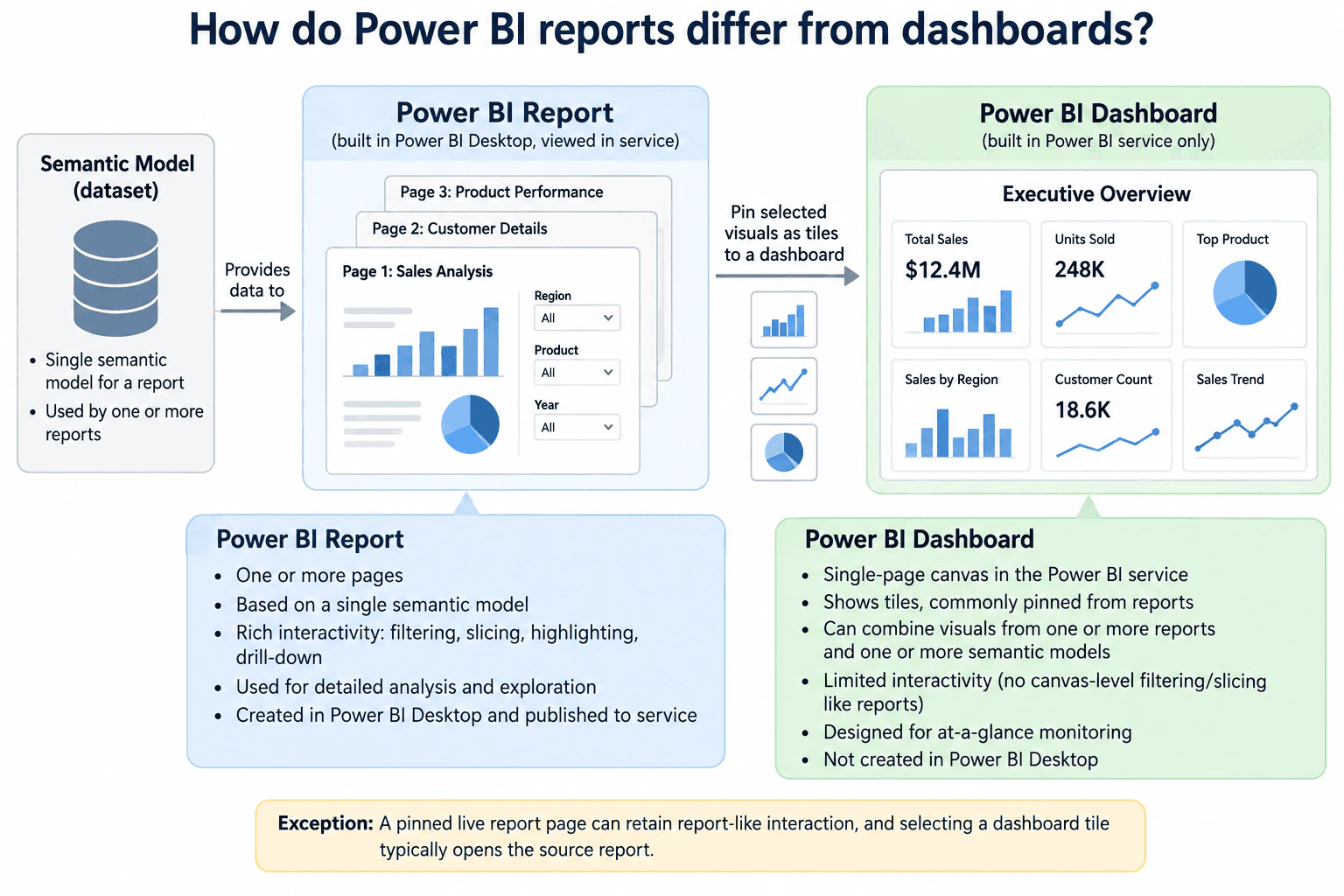
A Power BI report is for detailed analysis. It can have one or more pages, is based on a single semantic model, and supports rich interaction such as filtering, slicing, highlighting, and drill-down. A Power BI dashboard is a single-page canvas in the Power BI service. It contains tiles, commonly pinned from reports, and is designed for at-a-glance monitoring. Unlike a report, a dashboard can combine visuals from multiple reports and multiple semantic models. Dashboard-level filtering and slicing are more limited than report interaction.
Detailed Explanation
Power BI reports and dashboards both display business information, but they are designed for different jobs. A report is used for detailed exploration: it can have one or more pages and supports filters, slicers, highlighting, and drill-down. Each report is based on a single semantic model. A dashboard is a single-page canvas in the Power BI service, built for quick monitoring. It contains tiles, often pinned from reports, and can combine content from multiple reports and semantic models. Reports help users investigate; dashboards help users monitor important information quickly.
Useful Questions to Ask the Interviewer
Are you asking about Power BI dashboards in the Power BI service, rather than using the word dashboard informally for a report page?
Should I focus only on structure, interactivity, and semantic-model use, or also explain how report visuals are pinned to dashboards?
Would you like me to mention the pinned live report page exception?
How to Explain It in an Interview
Start with structure. A Power BI report has one or more pages. It is based on a single semantic model, which supplies the fields, relationships, and measures used by its visuals. In the workflow shown in the diagram, the report is built in Power BI Desktop and then viewed in the Power BI service.
Next, compare interactivity. Reports are designed for detailed analysis and exploration. Users can filter and slice data, interact with visuals, highlight related values, and drill down into more detail. This makes reports useful when someone needs to understand why a metric changed or examine different regions, products, or time periods.
A Power BI dashboard is different. It is a single-page canvas in the Power BI service. It is designed for at-a-glance monitoring and contains tiles, commonly pinned from report visuals. A dashboard does not provide the same canvas-level filtering and slicing experience as a report.
The semantic-model relationship is another key difference. One report is based on one semantic model. A dashboard can combine tiles originating from one or more reports and one or more semantic models. This lets a dashboard provide one consolidated monitoring view even when the underlying analysis is spread across separate reports.
The relationship between the two is important. A report can provide detailed pages such as sales analysis, customer details, or product performance. Selected report visuals can be pinned as dashboard tiles. Selecting a normal dashboard tile typically takes the user to the underlying report for deeper analysis.
There is an important exception: a pinned live report page can retain report-like interaction. So the simple interview summary is: use a report to explore and analyze in detail; use a dashboard to monitor key information on one page.
Technical Approach
Compare structure: a report has one or more pages; a dashboard has one page.
Compare semantic-model use: one semantic model per report; a dashboard can combine content from one or more reports and semantic models.
Compare interactivity: reports support filtering, slicing, highlighting, and drill-down; dashboards have more limited canvas-level interaction.
Compare purpose: reports support detailed analysis and exploration; dashboards support at-a-glance monitoring.
Explain the relationship: selected report visuals can be pinned as dashboard tiles, and selecting a standard tile typically opens the underlying report.
Mention the exception that a pinned live report page can retain report-like interaction.
Practical Insights
There is no algorithmic time or space complexity for this concept. The practical tradeoff is between analytical depth and simplicity. Reports can contain multiple pages, filters, slicers, and detailed interactions, so they support deeper investigation but can require more design and testing. Dashboards summarize important information on one page, which makes them faster to scan, but they provide less canvas-level exploration. Their ability to combine tiles from multiple reports or semantic models is useful for consolidated monitoring.
Why Interviewers Ask This
Interviewers want to see whether you understand the practical distinction between Power BI reports and dashboards: reports support detailed, interactive analysis from one semantic model, while dashboards provide a single-page monitoring view in the Power BI service and can bring together tiles from multiple reports or semantic models.
Common interview mistakes
Common mistakes are saying reports and dashboards are the same thing, calling any one-page report a Power BI dashboard, saying a report directly uses multiple semantic models, or saying a dashboard must use only one semantic model. Another mistake is claiming dashboards have the same filtering, slicing, highlighting, and drill-down experience as reports. Also avoid saying Power BI dashboards are created in Power BI Desktop; the dashboard shown here is a Power BI service feature.
Interview tip
Answer in three parts: structure, interactivity, and semantic-model use. A concise explanation is: reports are one-or-more-page interactive experiences for deep analysis from one semantic model; dashboards are single-page Power BI service canvases for monitoring and can combine tiles from multiple reports and semantic models.
Interviewer may ask next
If a user needs to filter by region, drill into a product, and investigate why a metric changed, would you choose a report or a dashboard?
I would choose a report because the task requires detailed exploration. Reports support filters, slicers, visual interactions, highlighting, and drill-down across one or more pages. A dashboard could show the headline metric, but the user would normally move to the underlying report for the deeper investigation.
What changes if leadership wants one page containing important metrics that come from several different Power BI reports?
That requirement favors a dashboard. A Power BI dashboard is a single-page canvas that can combine tiles from multiple reports and multiple semantic models, so it works well as a consolidated monitoring view. I would keep detailed analysis in the underlying reports and use the dashboard as the high-level entry point.
74. How do Tableau calculated fields differ from table calculations?Business Intelligence ToolsMedium
i Question Details
Relate Tableau calculated fields and table calculations to the data used and the current view.
Short Interview Answer (30-60 seconds)
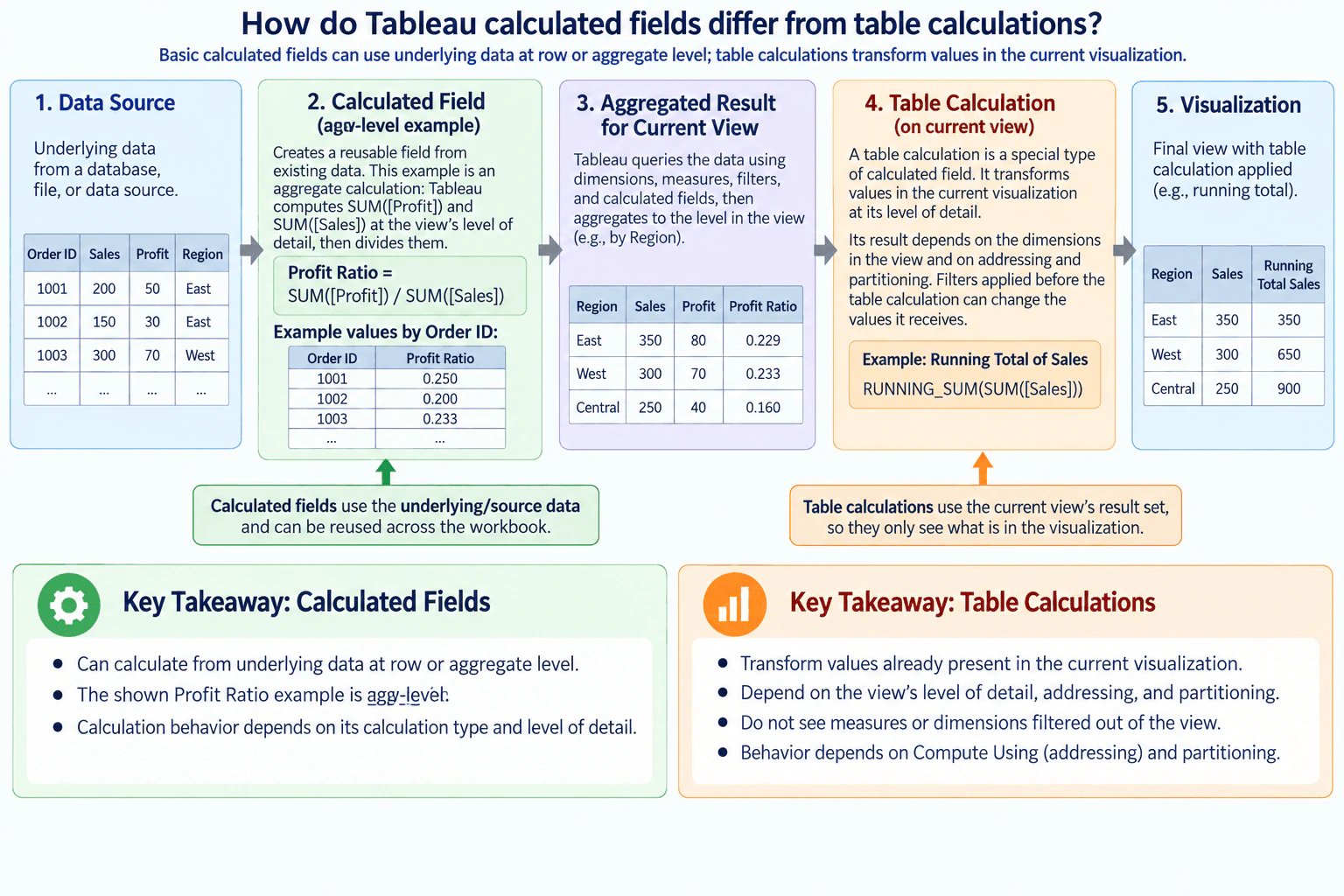
Calculated fields create reusable calculations from underlying data and can work at row or aggregate level. In the diagram, SUM([Profit]) / SUM([Sales]) is an aggregate calculated field evaluated at the view's level of detail. Table calculations work later on values already present in the visualization. A running total such as RUNNING_SUM(SUM([Sales])) therefore depends on the current view and on how Tableau addresses and partitions the marks.
Detailed Explanation
The key difference is the data each calculation uses and when it is applied. A calculated field creates a reusable calculation from underlying data and may be row-level or aggregate. In the diagram, SUM([Profit]) / SUM([Sales]) is an aggregate calculated field, so Tableau aggregates Profit and Sales at the current view's level of detail before dividing them. A table calculation works on values already present in the visualization. Because of that, its result depends on the current view, including its dimensions, addressing, partitioning, and relevant filters.
Useful Questions to Ask the Interviewer
Are we comparing row-level calculated fields, aggregate calculated fields, or both?
Should I explain how changing dimensions or filters in the view affects the result?
Would a running-total example help show addressing and partitioning?
How to Explain It in an Interview
Start with the calculation flow shown in the diagram. Tableau begins with the underlying data. A calculated field can create reusable logic from that data before a table calculation is applied.
Calculated fields can work at different calculation levels. A row-level calculated field evaluates an expression for individual records. An aggregate calculated field uses aggregate functions such as SUM or AVG. The approved diagram uses this aggregate example:
SUM([Profit]) / SUM([Sales])
When Region is the dimension in the view, Tableau calculates SUM([Profit]) and SUM([Sales]) for each region and divides those aggregates. If the view's level of detail changes, the result can also change because the aggregates are being calculated for a different grouping of marks.
The diagram then shows an aggregated result for the current view. That result becomes the input to the table-calculation stage. A table calculation is a special type of calculated field that transforms values already present in the visualization rather than independently recalculating over every raw source row.
The diagram's table-calculation example is:
RUNNING_SUM(SUM([Sales]))
Tableau first produces SUM([Sales]) for the marks in the current view. RUNNING_SUM then accumulates those displayed aggregate values in the order defined by the table calculation. That is why a running total can change when the view changes.
Addressing tells Tableau which marks the table calculation moves across. Partitioning defines the groups within which the calculation is performed and where it restarts. These behaviors are controlled through the view and Compute Using settings. For example, a running total may run across regions, down dates, or restart within separate groups depending on the dimensions and table-calculation configuration.
Filters are also important. Filters applied before the table-calculation stage can change the marks and values that reach the table calculation. As a result, calculations such as running totals, rank, percent of total, and moving calculations can change when the view or relevant filters change.
The practical distinction is therefore simple: use a regular calculated field when you want reusable logic based on underlying fields, whether row-level or aggregate. Use a table calculation when the calculation needs to compare, accumulate, rank, or otherwise transform values already present in the current visualization.
To validate the result, first verify the base aggregates against a trusted total. Then check the table calculation separately. For a running total, confirm that each displayed cumulative value equals the prior cumulative value plus the current mark and that the calculation restarts only at the intended partition boundary.
Technical Approach
Identify whether the required result should be calculated from underlying fields or from values already displayed in the current view.
If it uses underlying fields, decide whether the calculated field should be row-level or aggregate.
Check the dimensions in the view because they determine the level of detail for aggregate calculated fields.
If the calculation must operate across displayed marks, use a table calculation.
Configure and verify addressing and partitioning through Compute Using.
Check relevant filters that can change the values reaching the table calculation.
Validate the base aggregates first, then manually verify several table-calculation results.
Practical Insights
Calculated fields are usually easier to reuse because the calculation definition can be used in multiple views, although aggregate results still depend on the view's level of detail. Table calculations are convenient for view-based analysis but are more sensitive to worksheet structure. Adding, removing, or rearranging dimensions, changing relevant filters, or changing Compute Using can alter the values available to the table calculation or how Tableau addresses and partitions them.
Why Interviewers Ask This
Interviewers want to know whether you understand Tableau's calculation layers and can choose the correct calculation type without confusing calculations based on underlying data with calculations performed over values in the current view.
Common interview mistakes
Common mistakes are saying that every calculated field is row-level, treating SUM([Profit]) / SUM([Sales]) as a row-level calculation, assuming a table calculation reads raw source rows directly, ignoring the current view's level of detail, and forgetting that addressing, partitioning, Compute Using, and relevant filters can change table-calculation results.
Interview tip
Explain the distinction as a calculation flow: underlying data first, aggregate values at the view's level of detail, then table calculations over the resulting marks. Use the diagram's Profit Ratio and running-total formulas to make the difference concrete.
Interviewer may ask next
What happens to a running-total table calculation if you add another dimension to the Tableau view?
The result may change because the new dimension can change the view's level of detail, the marks available to the table calculation, or how Tableau addresses and partitions them. I would inspect Compute Using and confirm whether the running total should continue across the new dimension or restart for each partition.
When would you prefer a regular calculated field instead of a table calculation?
I would prefer a regular calculated field when the business logic should be reusable and based on underlying fields rather than on the arrangement of marks in one worksheet. I would choose a table calculation when the requirement specifically depends on values already present in the current view, such as a running total, rank, percent of total, or moving calculation.
75. When would you choose a Tableau extract rather than a live connection?Business Intelligence ToolsMedium
i Question Details
Compare a Tableau extract and live connection for freshness, responsiveness, and source-system load.
Short Interview Answer (30-60 seconds)
I would choose a Tableau extract when the dashboard does not need continuously current data and faster, more predictable dashboard performance is more important. An extract stores a copy or subset of the source data in Tableau's data engine, so dashboard interactions generally query the extract instead of repeatedly querying the original source. That can improve responsiveness and reduce interactive load on the source. The tradeoff is freshness because the extract is only as current as its latest successful refresh. I would prefer a live connection when fresher source data is required and the source can reliably handle the expected query workload.
Detailed Explanation
The decision is mainly a tradeoff between freshness, responsiveness, and load on the original data source. A Tableau extract stores a copy or subset of source data and updates it through refreshes. A live connection sends queries to the underlying source when Tableau needs results. I would prefer an extract when some controlled data delay is acceptable and I want fast, predictable dashboard interaction without repeatedly querying the operational source. I would prefer live when users need source changes with minimal additional Tableau refresh delay and the source can support the expected analytical workload.
Useful Questions to Ask the Interviewer
How fresh does the dashboard data need to be: near real time, hourly, daily, or another interval?
How quickly does the underlying source itself receive new or corrected data?
Can the source system safely support frequent interactive analytical queries?
Are users experiencing slow queries, timeouts, or inconsistent dashboard response times?
How much additional query load can the source accept during normal usage?
Can the required extract be refreshed reliably within the allowed freshness window?
Does the dashboard require all source data, or can the extract contain only the needed rows and fields?
How will refresh failures or stale extracts be detected and communicated?
How to Explain It in an Interview
I would first define the freshness requirement. With a live connection, Tableau sends queries to the database and updates the view based on the returned results. This removes the need to wait for a scheduled extract refresh, although it does not guarantee true real-time data because the underlying source and upstream pipelines can have their own latency. help.tableau.com
Next, I would evaluate responsiveness. An extract stores imported data in Tableau's data engine. Tableau documents that workbooks connected to extracts generally perform faster than workbooks connected to live data. This makes an extract useful when the source is slow, network latency is significant, or interactive source queries are expensive. I would still test the actual workbook because performance depends on the source, data volume, calculations, filters, infrastructure, and dashboard design. help.tableau.com
Then I would consider source-system load. With a live connection, dashboard interactions can cause queries to be sent to the source. As usage grows, those analytical queries can compete with other work performed by that system. An extract moves normal dashboard querying to the extracted copy, reducing repeated interactive queries against the original source. It does not eliminate source load because Tableau must still query the source when creating or refreshing the extract.
The main cost of using an extract is freshness. The displayed data reflects the latest successful extract refresh rather than every current source change. I would therefore choose a refresh schedule that meets the business freshness requirement and account for latency that already exists upstream. I would also monitor refresh failures because a dashboard can remain available while its extract becomes older than expected.
I would also decide between full and incremental refreshes when relevant. A full refresh replaces all rows in the extract with data from the original source and can take longer or be expensive on the database. An incremental refresh can process new rows instead of rebuilding the entire extract, and current Tableau versions can also refresh a configured recent time range to capture changes within that range. The correct configuration depends on whether source records are only appended or can later be updated or deleted. Periodic full refreshes may still be appropriate when needed to reconcile the extract with the source. help.tableau.com
So I would choose an extract when bounded staleness is acceptable, dashboard responsiveness needs improvement or greater predictability, the source should be protected from repeated interactive analytical queries, or the required data can be represented effectively as an extracted subset. I would choose live when freshness has higher priority and the underlying system can reliably support the dashboard's query workload.
Before publishing, I would test the chosen design. I would compare dashboard interaction performance, observe source-query behavior, measure extract refresh duration and reliability when using an extract, and confirm that the resulting freshness meets the requirement. I would also validate appropriate totals, row counts, or other control checks against the trusted source. After publishing, I would continue monitoring dashboard performance and extract refresh jobs because changes in data volume or user activity can change which connection mode is best.
Technical Approach
Define the maximum acceptable data staleness for the dashboard.
Determine the source system's own data latency so source freshness is not confused with Tableau connection mode.
Evaluate the expected interactive query workload from dashboard users.
Check whether the source can support that live workload without unacceptable performance or operational impact.
Test live dashboard responsiveness when practical.
If bounded staleness is acceptable and live performance or source load is problematic, evaluate an extract.
Choose a full or incremental refresh strategy based on how source records are inserted, updated, and deleted.
Confirm that refresh duration and frequency can meet the required freshness window.
Validate the refreshed extract against a trusted source using appropriate control totals, row counts, or equivalent checks.
Monitor refresh failures, data age, source load, and dashboard performance after publishing and revisit the decision if requirements change.
Practical Insights
A live connection avoids maintaining a separate extract, but dashboard requests depend more directly on the database, network, and source-query performance. An extract requires storage, refresh processing, and refresh monitoring, but it can make interactive querying faster and reduce repeated dashboard load on the source. A full refresh can become expensive as the extract grows, while a suitable incremental refresh can reduce refresh work. The practical cost depends on data volume, query frequency, refresh frequency, source capacity, infrastructure, and the amount of freshness the business requires.
Why Interviewers Ask This
The interviewer is testing whether I can choose the right Tableau connection mode by balancing data freshness, dashboard responsiveness, source-system load, refresh reliability, and maintenance instead of assuming that one mode is always better.
Common interview mistakes
Common mistakes are saying extracts are always faster, assuming a live connection guarantees true real-time data, ignoring upstream source latency, forgetting that an extract can become stale between successful refreshes, assuming extracts create no source-system load, refreshing too frequently without considering database or Tableau capacity, using an incremental strategy without considering changed or deleted source records, and choosing a connection mode without testing dashboard performance or validating refreshed data.
Interview tip
Explain the decision through three factors: freshness, responsiveness, and source-system load. Say that an extract accepts controlled refresh latency in exchange for isolated and generally faster analytical querying, while live avoids extract-refresh delay but depends more directly on the source. Mention refresh reliability and validation to show that you understand the operational tradeoff as well as the Tableau setting.
Interviewer may ask next
Suppose the extract refreshes every hour, but the source system itself receives data two hours late. How fresh is the dashboard really?
The dashboard's effective freshness is not simply one hour. I would include both the source's upstream latency and the additional delay until a successful Tableau refresh captures the data. A record that reaches the source two hours late may wait further for the next extract refresh. I would therefore measure end-to-end freshness from the business event through source ingestion and Tableau refresh rather than describing freshness only by the Tableau schedule.
What would you do if the requirement changed from daily reporting to near-real-time monitoring?
I would reassess the connection mode because the previous extract schedule might no longer satisfy the freshness requirement. Increasing extract-refresh frequency could work if the required latency is still achievable, but it also increases refresh activity and source load. If users need source changes with minimal additional Tableau refresh delay and the source can handle the interactive query workload, I would evaluate a live connection. I would test dashboard performance and source impact before switching rather than assuming live is automatically the better operational choice.
76. When is Tableau data blending preferable to joining sources?Business Intelligence ToolsMedium
i Question Details
Consider source separation and differing levels of detail when choosing Tableau blending or joins.
Short Interview Answer (30-60 seconds)
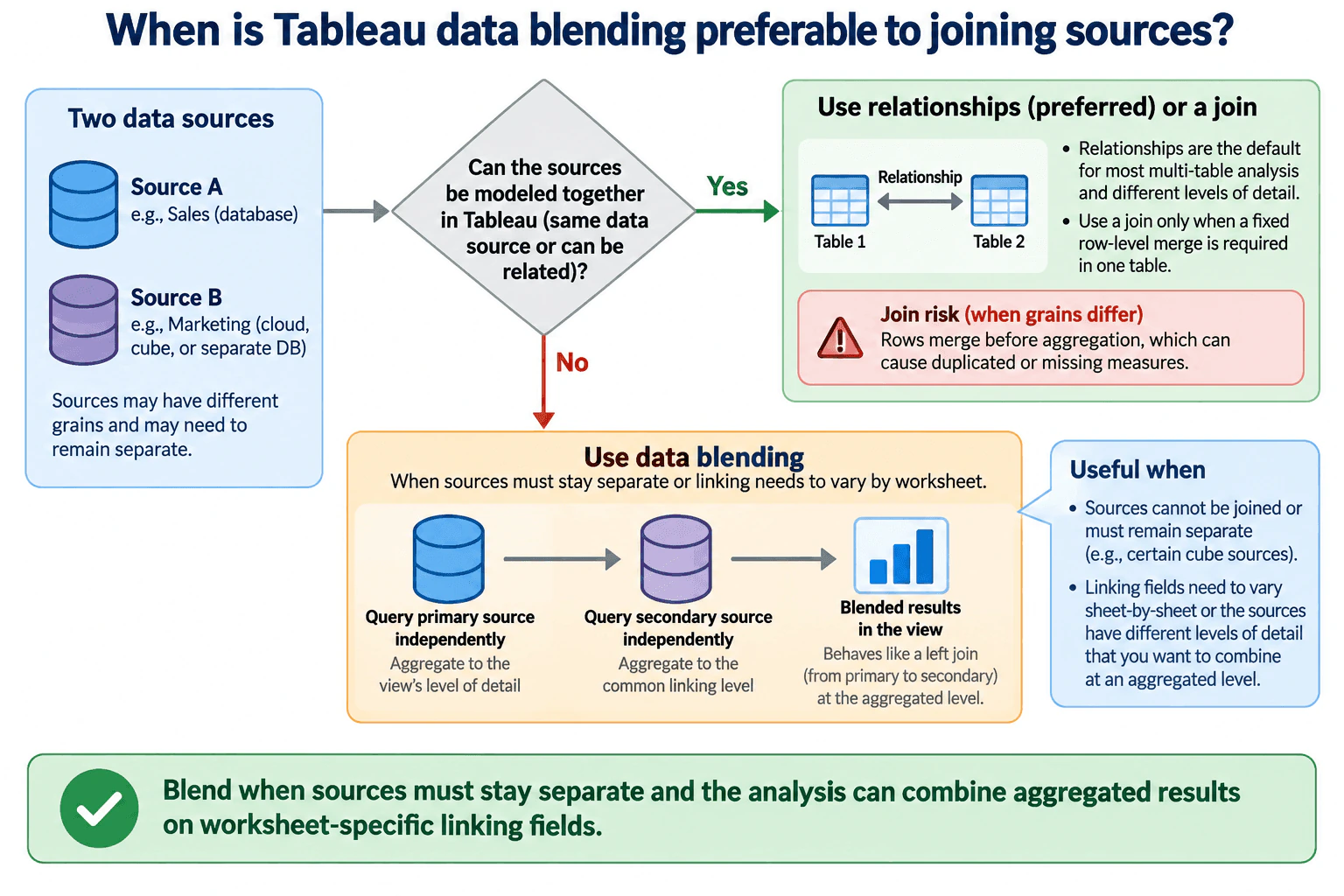
I use Tableau data blending when the sources need to stay separate and I only need to combine their aggregated results in a worksheet. It is especially useful when the linking fields must vary by sheet. Tableau queries the primary and secondary sources separately and then combines the aggregated results through active linking fields. I would not choose blending only because the tables have different grain; relationships are usually preferred when the tables can be modeled together. I use a physical join when I intentionally need one fixed row-level table and have verified that the join will not create unwanted duplication or data loss.
Detailed Explanation
The decision is whether the data should be combined into one physical row-level table or remain in separate data sources. A join merges rows before the analysis, so grain and join cardinality matter. Data blending keeps the sources separate: Tableau queries them independently, aggregates the results, and combines those aggregated results in the worksheet through linking fields. Blending is most useful when sources must stay separate or when different worksheets need different linking fields. If the tables can be modeled together, Tableau relationships are usually the preferred option because they can preserve different levels of detail without forcing one fixed physical join.
Useful Questions to Ask the Interviewer
Must the sources remain separate, or can they be modeled together in one Tableau data source?
What is the grain of each source?
Could a physical join duplicate measures or remove unmatched rows?
Do the linking fields need to change from worksheet to worksheet?
Which source should define the values that appear in the blended view?
How to Explain It in an Interview
Start by separating the three choices.
A physical join combines rows into one table before aggregation. This is appropriate when a fixed row-level merge is intentionally required and the join keys and grain are understood. If the tables have different levels of detail, a physical join can repeat values from the less detailed table. Depending on the join type, unmatched rows can also be excluded. Both cases can produce misleading totals if they are not expected.
A Tableau relationship is different from a physical join. Relationships keep logical tables separate in the data model and let Tableau determine appropriate joins and aggregations based on the fields used in the analysis. When tables can be modeled together, relationships are generally preferred, including when the tables have different levels of detail. Therefore, different grain by itself is not enough reason to choose blending.
Data blending is appropriate when the sources themselves need to remain separate. In a blended worksheet, Tableau queries the primary source and secondary source independently rather than first creating one physical row-level table. The results are aggregated and then combined through active linking fields. This matches the diagram's flow: the primary source is aggregated to the view's level of detail, the secondary source is aggregated at the linking level needed for the blend, and the aggregated results are then combined in the view.
The primary source matters because it defines the domain of the blended view. Secondary-source values are brought in where the linking values match the primary source, so the result is similar to left-join behavior from primary to secondary at the aggregated-result level. This means unmatched values that exist only in the secondary source do not automatically expand the primary view.
Blending is also useful when linking fields need to vary by worksheet. Because the blend is worksheet-specific, one worksheet can activate one set of linking fields while another worksheet can use a different set. That flexibility can be useful when the same separate sources must be compared in different analytical contexts.
The main validation steps are to confirm the grain of both sources, identify the correct primary source, verify the active linking fields, check null or unmatched members, and compare the resulting totals with trusted totals from each source. If a physical join produces duplicated measures, inspect the join cardinality and table grain. If a blend appears to miss secondary values, inspect the primary-source domain and the linking fields.
The tradeoff is that blending preserves source separation and supports worksheet-specific linking, but it introduces primary-secondary behavior and is less reusable as a general data model than relationships. Relationships are normally the better default when tables can be modeled together. Physical joins are appropriate when a fixed row-level result is required and its row-multiplication or row-removal effects are intentional and validated.
Technical Approach
Determine whether the sources must remain separate or can be modeled together in one Tableau data source.
Define the grain of each source before choosing a combination method.
Prefer Tableau relationships when the tables can be modeled together and need to preserve their native levels of detail.
Use a physical join only when a fixed row-level merge is required and the join cardinality is understood.
Choose data blending when the sources must remain separate or linking fields need to vary by worksheet.
Identify the correct primary source because it defines the domain of the blended view.
Verify the active linking fields and aggregation levels.
Validate totals and unmatched values against the original sources.
Practical Insights
Data blending avoids physically merging all rows into one table because Tableau queries the sources separately and combines aggregated results in the worksheet. That can prevent row multiplication caused by an unsuitable physical join, but separate source queries can add latency if one source is slow. Physical joins can be efficient and simple when one fixed row-level table is truly required, but they can create extra rows or remove rows when grain or join conditions do not match the intended analysis. Relationships are usually the most flexible reusable option when the tables can be modeled together.
Why Interviewers Ask This
The interviewer is testing whether the analyst understands how Tableau relationships, physical joins, and data blending differ, and whether the analyst can choose among them based on source separation, grain, aggregation behavior, linking fields, and the risk of incorrect totals.
Common interview mistakes
Common mistakes are choosing blending simply because tables have different levels of detail; ignoring Tableau relationships, which are usually preferred when the tables can be modeled together; creating a physical join without checking grain and then double-counting measures; assuming blending physically merges the sources into one table; forgetting that the primary source defines the blended view; expecting unmatched secondary-only values to appear automatically; and failing to verify the active linking fields and aggregated totals.
Interview tip
Explain the choice as a simple decision: use relationships when the tables can be modeled together, use a physical join when a fixed row-level merge is intentionally required, and use blending when distinct sources must stay separate or linking fields need to vary by worksheet. Mention grain and primary-secondary behavior to show that you understand the main correctness risks.
Interviewer may ask next
What would you check if values from the secondary source were missing after a Tableau blend?
I would verify that the intended linking fields are active and compatible between the sources, then confirm which source is primary. The primary source defines the domain of the view, so secondary values without matching primary linking values will not automatically appear. I would also check nulls, data types, aggregation levels, and whether the chosen primary source matches the analytical goal.
What would you do if the sources have different grains but can be modeled together in one Tableau data source?
I would normally start with a Tableau relationship rather than blending or forcing a physical join. Relationships can preserve the logical tables at their native levels of detail and let Tableau determine appropriate joins and aggregations for the fields used in the view. I would use a physical join only if a fixed row-level table is specifically required, and I would use blending only if the sources still need to remain separate or worksheet-specific linking is required.
77. How do FIXED, INCLUDE, and EXCLUDE LOD expressions differ in Tableau?Business Intelligence ToolsHard
i Question Details
Explain how Tableau FIXED, INCLUDE, and EXCLUDE relate to view granularity and filters.
Short Interview Answer (30-60 seconds)
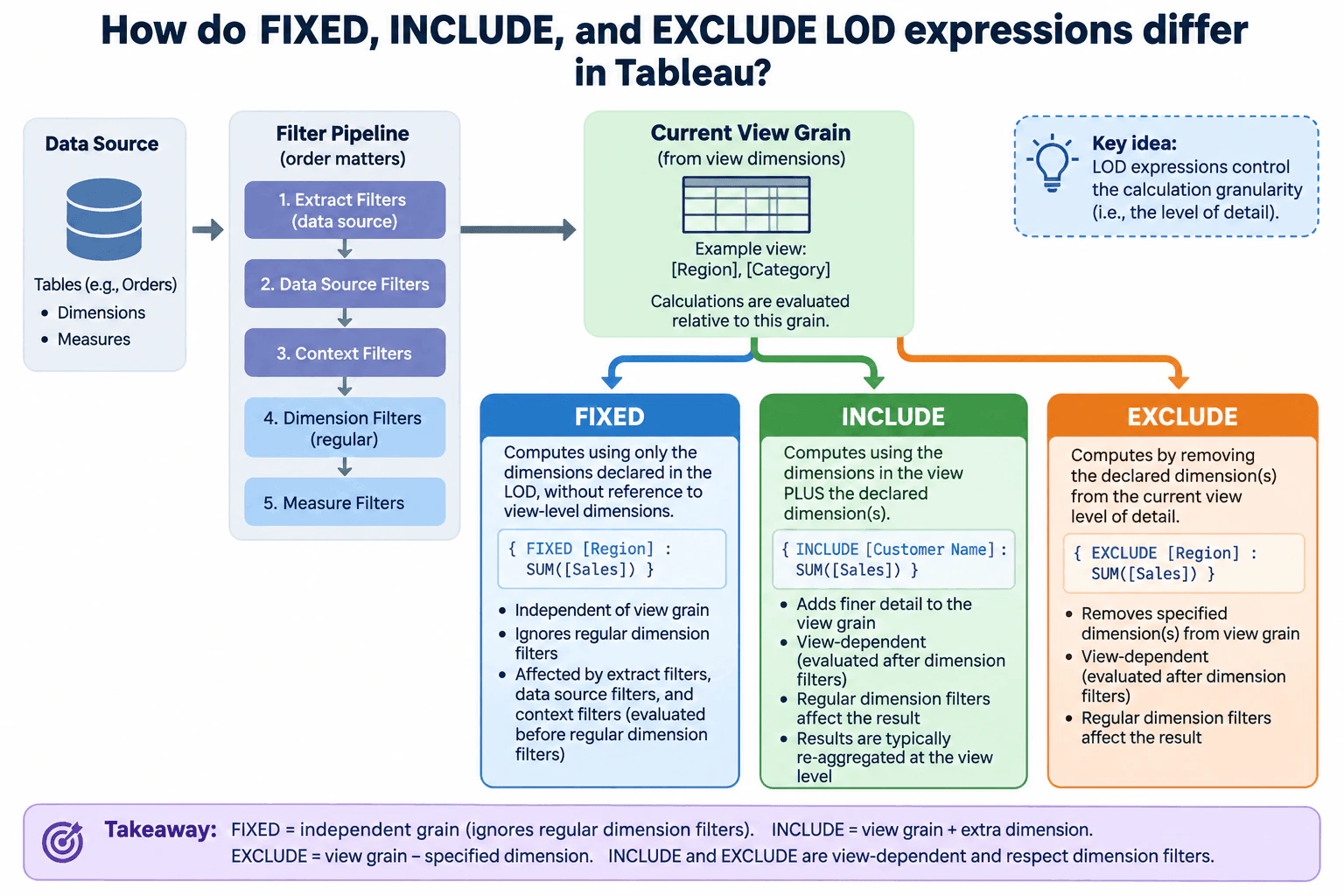
FIXED uses the dimensions explicitly declared in the LOD expression, so its grain is independent of the dimensions currently in the view. INCLUDE starts with the view's grain and adds the specified dimension, which can create finer detail before Tableau re-aggregates the result to the displayed level. EXCLUDE starts with the view's grain and removes a specified view dimension, producing a more aggregated calculation. Filter order matters: FIXED is evaluated after extract, data source, and context filters but before regular dimension filters. INCLUDE and EXCLUDE are evaluated after regular dimension filters. Measure filters occur later and therefore do not redefine the LOD calculation grain.
Detailed Explanation
LOD, or level of detail, tells Tableau at what granularity a calculation should run. FIXED, INCLUDE, and EXCLUDE differ mainly in how that calculation grain relates to the dimensions already defining the view. FIXED declares its own grain. INCLUDE takes the current view grain and adds specified dimensions, while EXCLUDE removes specified dimensions from the current view grain. Filter order is equally important: FIXED is evaluated before normal dimension filters, whereas INCLUDE and EXCLUDE are evaluated after them. Context filters occur earlier and can therefore affect FIXED results.
Useful Questions to Ask the Interviewer
What dimensions currently define the view's grain?
Should the metric remain stable when users apply regular dimension filters?
Should the calculation add detail, remove detail, or use an independent declared grain?
Are any relevant dimension filters configured as context filters?
How to Explain It in an Interview
Start with the current view grain. In the audited diagram, the example view uses [Region] and [Category]. Those dimensions define the displayed level of detail.
FIXED says: calculate using the dimensions declared inside the LOD expression instead of inheriting the dimensions in the view. For example, { FIXED [Region] : SUM([Sales]) } calculates Sales at Region grain even if the view also contains Category. A FIXED expression can therefore be finer than, coarser than, or equal to the view depending on which dimensions are declared. Its key property is that its grain is independent of the view grain.
Filter order explains another important behavior. Tableau evaluates extract filters first, then data source filters, then context filters, and then FIXED LOD expressions. Regular dimension filters occur after FIXED. Because of that order, a normal dimension filter usually does not change the data used by a FIXED calculation, while extract, data source, and context filters can affect it.
INCLUDE says: take the dimensions already defining the view and add the declared dimension or dimensions for the calculation. For example, { INCLUDE [Customer Name] : SUM([Sales]) } adds Customer Name to the current view grain. If Customer Name is not already part of the view grain, the calculation runs at a finer level. Tableau then typically aggregates that finer-grain result back to the visible view level. INCLUDE is therefore view-dependent.
EXCLUDE does the opposite. It removes the declared dimension or dimensions from the current view grain for the calculation. For example, { EXCLUDE [Region] : SUM([Sales]) } removes Region from the calculation grain when Region is part of the view. That produces a more aggregated result relative to the displayed view. If the excluded dimension is not part of the view grain, excluding it does not create the same grain change. EXCLUDE is also view-dependent.
INCLUDE and EXCLUDE are evaluated after regular dimension filters, so those filters can change the data available to their calculations. Measure filters occur later in Tableau's order of operations, so they filter already-aggregated results rather than redefining the LOD calculation grain.
A compact mental model is: FIXED = independent declared grain, INCLUDE = view grain plus specified dimensions, and EXCLUDE = view grain minus specified dimensions. The audited diagram shows the same distinction and the same filter sequence: extract filters, data source filters, context filters, regular dimension filters, then measure filters, with FIXED evaluated before regular dimension filters and INCLUDE and EXCLUDE after them.
To validate an LOD calculation, first identify the intended grain. Then change dimensions in the view and observe whether the result should remain fixed or adapt. Next apply a regular dimension filter. For a FIXED expression, promote that filter to context and confirm that the FIXED result now responds. This checks both the grain logic and the filter-order behavior.
Technical Approach
Identify the dimensions that currently define the Tableau view grain.
Decide whether the calculation needs an independent declared grain, additional detail, or less detail.
Use FIXED for an independent declared grain, INCLUDE to add specified dimensions to the view grain, or EXCLUDE to remove specified view dimensions from the calculation grain.
Validate by changing view dimensions and testing both regular dimension filters and context filters.
Practical Insights
LOD expressions are mainly a semantic and query-cost decision rather than a Big-O algorithm problem. INCLUDE can increase the number of groups Tableau must calculate when it adds a high-cardinality dimension. FIXED and EXCLUDE can also require additional aggregation work. Actual cost depends on data volume, dimension cardinality, the data source, and the generated query plan. The main practical tradeoff is getting the correct and maintainable grain while avoiding unnecessarily expensive grouping and aggregation.
Why Interviewers Ask This
Interviewers want to know whether you understand Tableau calculation granularity and can reason correctly about how FIXED, INCLUDE, and EXCLUDE relate to the dimensions in the view and Tableau's order of operations for filters.
Common interview mistakes
Common mistakes are assuming FIXED always means a more aggregated value, assuming FIXED respects every visible dimension filter, forgetting that context filters can affect FIXED, treating INCLUDE as if it automatically adds a visible dimension to the visualization, forgetting that INCLUDE results are typically re-aggregated to the view level, using EXCLUDE for a dimension that is not actually part of the view grain, and choosing an LOD expression before defining the intended calculation grain.
Interview tip
Explain the three expressions relative to the current view grain first, then explain filter order. A concise summary is: FIXED declares an independent grain, INCLUDE adds dimensions to the view grain, and EXCLUDE removes dimensions from the view grain; regular dimension filters are evaluated after FIXED but before INCLUDE and EXCLUDE.
Interviewer may ask next
What happens if a regular dimension filter should affect a FIXED LOD expression?
A regular dimension filter is normally evaluated after FIXED, so it does not change the data used by that FIXED calculation. If the requirement is for the filter to constrain the FIXED result, a common approach is to make that filter a context filter. Context filters are evaluated before FIXED, so the FIXED calculation then runs on the context-filtered data. I would validate the result by comparing control totals before and after promoting the filter to context.
When would you choose INCLUDE instead of FIXED for a calculation at a finer grain?
I would choose INCLUDE when the calculation should stay relative to the current view and add a specific dimension to whatever grain the view already has. That makes the calculation responsive to changes in the view and to regular dimension filters. I would choose FIXED when I need to declare a specific grain explicitly and keep that grain independent of the dimensions currently displayed. The decision is therefore based on whether the calculation should adapt with the view or remain anchored to a declared level of detail.
78. How would you investigate a sluggish Tableau dashboard?Business Intelligence ToolsHard
i Question Details
Explain how you would locate a Tableau dashboard bottleneck before changing queries or visual elements.
Short Interview Answer (30-60 seconds)
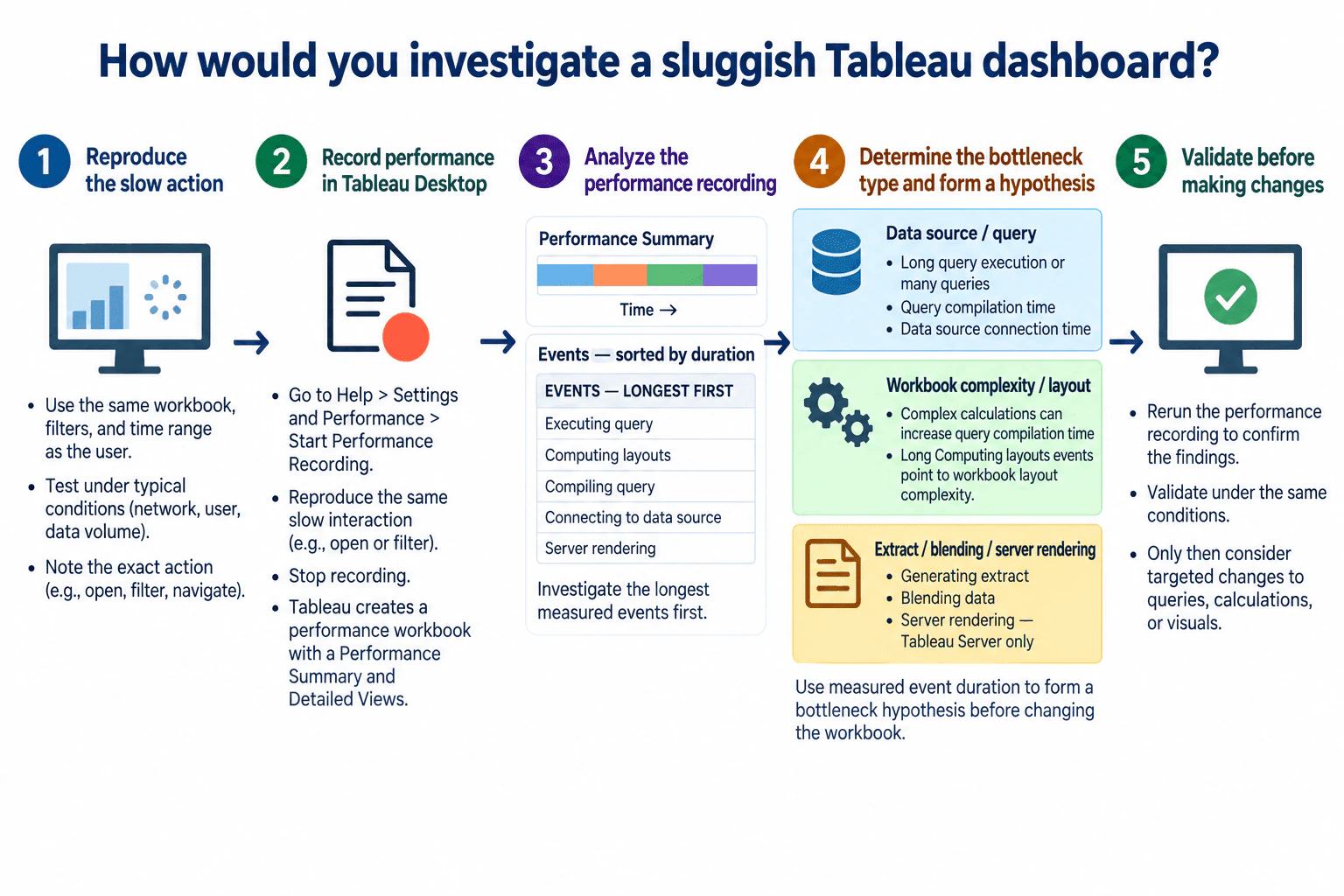
I would first reproduce the slow action with the same workbook, filters, user context, time range, representative data volume, and similar environment. Then I would start Tableau Desktop Performance Recording, reproduce the issue, stop the recording, and inspect the Performance Summary and events from longest duration downward. I would determine whether the evidence points mainly to query execution, query compilation, data-source connection, workbook layout complexity, extract generation, blending, or server rendering. I would form one specific hypothesis and rerun the same scenario to confirm it before changing queries, calculations, or visuals.
Detailed Explanation
The task is to find where a Tableau dashboard is actually spending time before changing queries, calculations, or visual elements. I would first reproduce the exact slow action under comparable conditions, then capture it with Tableau Desktop Performance Recording. I would inspect the Performance Summary and review measured events from longest to shortest. The goal is to determine whether the evidence points mainly to query or connection work, workbook layout complexity, extract generation, blending, or server rendering. I would form one specific bottleneck hypothesis and rerun the same scenario to confirm it before making a targeted change.
Useful Questions to Ask the Interviewer
Which action is slow: initial dashboard load, opening a sheet, changing a filter, or another interaction?
Does the problem happen consistently, or only for certain users, filters, data volumes, or times?
Is the workbook being tested in Tableau Desktop, Tableau Server, or both?
Is the data source live or extract-based, and has that recently changed?
Is there a known baseline for normal performance that I can compare against?
How to Explain It in an Interview
I would use a measure-first workflow.
First, I would reproduce the problem as closely as possible. I would use the same workbook, filters, time range, and user context that produced the slowdown. I would also keep representative data volume, network conditions, and other important environmental factors similar. I would note the exact slow action, such as opening the dashboard, navigating, or applying a filter. This gives me a repeatable scenario and avoids comparing measurements taken under different conditions.
Second, I would create a baseline with Tableau Desktop Performance Recording. I would go to Help > Settings and Performance > Start Performance Recording, reproduce the same slow interaction, and stop the recording. Tableau creates a performance workbook with a Performance Summary and Detailed Views. At this point I would deliberately avoid changing queries, calculations, or visual elements because I want evidence from the current state first.
Third, I would inspect the Performance Summary and review the measured events from longest duration downward. The audited diagram highlights Executing query, Computing layouts, Compiling query, Connecting to data source, and Server rendering. I would investigate the longest measured events first, but I would treat event duration as evidence about where to look rather than as automatic proof of the root cause.
If Executing query or Connecting to data source is prominent, I would form a data-source or query hypothesis. The issue could involve long-running queries, many queries, or connection latency. I would not rewrite SQL immediately; I would first confirm that query or connection work is consistently a major part of the measured delay.
If Computing layouts is prominent, I would investigate workbook layout complexity. That suggests Tableau is spending meaningful time computing the workbook layout instead of waiting only on the data source. If Compiling query is prominent, I would investigate calculations and generated query complexity because complex workbook logic can contribute to additional query-processing work. I would still validate the finding before changing the workbook.
Other event types can point to different stages. Generating extract indicates extract-generation work. Blending data indicates blending work. Server rendering applies when rendering occurs on Tableau Server. I would keep these categories separate because they represent different bottleneck areas and lead to different follow-up investigations.
Fourth, I would turn the evidence into one specific hypothesis. For example, the recording might indicate that most of the visible delay is associated with query execution, layout computation, or another measured event category. I would avoid claiming more certainty than the recording supports because a single test can be affected by workload, data volume, network conditions, caching, or other environmental differences.
Finally, I would rerun Performance Recording under the same conditions and reproduce the same interaction. If the same event category remains the main bottleneck, I have stronger evidence that I am investigating the correct area. Only then would I make a targeted change to the relevant query, calculation, workbook layout, extract strategy, or server-side component. After the change, I would measure the same scenario again so I can compare performance objectively instead of relying on how fast the dashboard feels.
Technical Approach
Reproduce the exact slow dashboard action with the same workbook, filters, user context, time range, representative data volume, and similar environment.
Start Tableau Desktop Performance Recording without changing the workbook.
Reproduce the slow interaction and stop recording.
Inspect the Performance Summary and review measured events from longest duration downward.
Classify the leading evidence into areas such as query or connection work, query compilation, workbook layout complexity, extract generation, blending, or server rendering.
Form one specific bottleneck hypothesis from the measured evidence.
Repeat the recording under the same conditions to check whether the finding is reproducible.
Only after confirmation, make one targeted change and measure the same scenario again.
Practical Insights
This is mainly a diagnostic cost rather than an algorithmic complexity problem. The main cost is the time needed to reproduce the issue, capture recordings, inspect event durations, and repeat controlled tests. Changing several things at once can appear faster, but it makes cause and effect difficult to identify. A controlled baseline and one targeted change at a time take more testing effort but produce a much more trustworthy diagnosis.
Why Interviewers Ask This
Interviewers want to see whether you diagnose Tableau performance with evidence before making changes. A strong answer separates symptoms from causes, uses Tableau Performance Recording to identify where time is being spent, forms a specific bottleneck hypothesis, and validates that hypothesis under comparable conditions instead of immediately rewriting queries or simplifying visual elements.
Common interview mistakes
Common mistakes are optimizing before recording a baseline, testing with different filters or data volumes, assuming the database is always the problem, treating one long event as definitive proof, inventing timing thresholds, combining unrelated event categories, changing queries and visuals at the same time, overlooking extract or server-rendering work, and judging improvement by feel instead of rerunning the same measured scenario.
Interview tip
Present the answer as a five-step evidence chain: reproduce, record, inspect the longest events, form a bottleneck hypothesis, and validate it. Emphasize that you do not change queries, calculations, or visual elements until the measurement points to the relevant area.
Interviewer may ask next
What would you do if the same dashboard is slow only for some users?
I would reproduce the problem using the affected user's conditions instead of assuming the workbook is universally slow. I would compare the same action, filters, data scope, connection path, environment, and other relevant user-specific conditions. When possible, I would capture a slow case and a normal case and compare their dominant event categories. If the timing difference appears only with a particular user context, I would investigate that differing condition before redesigning the dashboard. The important point is to keep the comparison controlled so the measured difference can narrow the hypothesis.
What if query execution is fast but Computing layouts is the longest event?
That would shift my investigation away from the data source and toward workbook layout complexity. I would first repeat the same interaction to confirm that Computing layouts consistently remains the dominant measured event. If it does, I would inspect the workbook structure and layout-related complexity before touching the SQL. I would then make one targeted workbook change at a time and rerun the same Performance Recording scenario. The tradeoff is that simplifying the workbook may improve responsiveness but can reduce presentation complexity, so I would keep only changes that produce a measurable benefit.
79. When can bidirectional relationships cause problems in Power BI?Business Intelligence ToolsHard
i Question Details
Discuss ambiguous filtering when choosing relationship direction in Power BI.
Short Interview Answer (30-60 seconds)
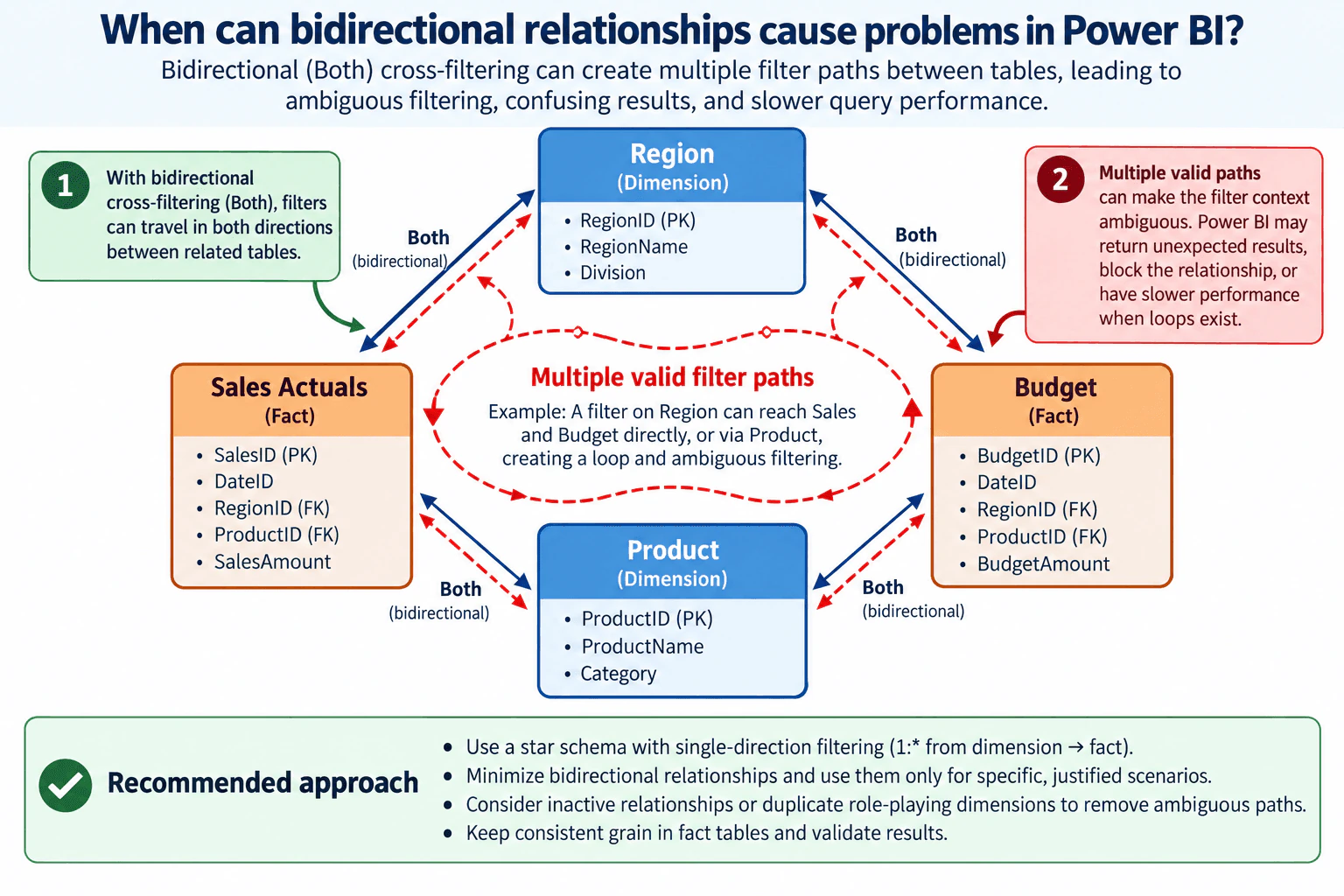
Bidirectional relationships become risky when they create more than one valid path for a filter to travel through a Power BI model. In the diagram, Region and Product can both filter Sales Actuals and Budget in both directions, creating a loop. A Region filter can reach Budget directly through the Region-Budget relationship or indirectly through Sales Actuals and Product. That can make filtering ambiguous, produce confusing or unexpected results, make the model harder to reason about, and hurt query performance. Power BI may also reject a relationship change if it would create ambiguity. I normally prefer a star schema with single-direction dimension-to-fact filtering and use bidirectional relationships only for a specific, justified need.
Detailed Explanation
The main issue is not that bidirectional filtering is always wrong. The problem starts when allowing filters to travel both ways creates multiple routes between tables. In the shown model, Region and Product are dimensions, while Sales Actuals and Budget are fact tables. Because all four relationships allow filtering in both directions, the tables form a loop. A Region filter can reach another table through more than one path. That makes filter context harder to predict, can produce unexpected results, and may slow queries. A simpler single-direction star-style model is usually safer and easier to validate.
Useful Questions to Ask the Interviewer
Does the model truly require filters to propagate from a fact table back to a dimension or into another fact table?
Are Sales Actuals and Budget stored at compatible grains for the dimensions being shared?
Is there already another active relationship path between the same parts of the semantic model?
Which report interaction or calculation requires bidirectional filtering instead of normal dimension-to-fact filtering?
Have key totals and measures been validated after changing the relationship direction?
How to Explain It in an Interview
Start with filter direction. A Power BI relationship controls how filter context can propagate between related tables. With normal single-direction filtering in a star schema, a dimension such as Region or Product filters a fact table such as Sales Actuals or Budget. This creates a predictable path from descriptive dimensions to numeric facts.
In the diagram, however, Region has bidirectional relationships with both Sales Actuals and Budget, and Product also has bidirectional relationships with both fact tables. This creates a closed loop: Region ↔ Sales Actuals ↔ Product ↔ Budget ↔ Region. Because every relationship permits filtering in both directions, a filter can propagate through multiple valid routes.
For example, a Region filter can reach Budget directly through Region ↔ Budget. It can also propagate Region → Sales Actuals → Product → Budget. The same pattern can let filters move from fact tables back through shared dimensions and into another fact table. This is the ambiguity risk shown in the diagram.
Power BI does not always behave in exactly the same way for every ambiguous model. In some cases, Power BI Desktop can reject a relationship change because it would create ambiguous filter propagation. In cases where multiple paths are allowed, Power BI evaluates path priority and weight to determine which propagation path is used. Even when a result can be resolved, the model is still harder for analysts to reason about and maintain.
The practical problem is filter context. A measure is evaluated under the filters that reach it. When the semantic model contains several propagation paths, understanding exactly which filters are active becomes harder. Results can become confusing or unexpected, troubleshooting becomes more difficult, and model behavior can change when relationships are added or their directions are modified. Broader bidirectional propagation can also increase query work and negatively affect performance.
The safer design is normally a star schema. A star schema places descriptive dimensions around one or more fact tables and usually lets each dimension filter the facts in one direction. For this diagram, Region and Product would normally filter Sales Actuals and Budget rather than allowing those fact tables to filter the dimensions back. That reduces loops and makes the intended filter paths easier to reason about.
Bidirectional filtering is still useful in some specific models, so I would not ban it completely. I would first identify the exact report behavior that needs it, confirm that no harmful ambiguous path is introduced, and limit its use to the justified relationship. Depending on the requirement, an inactive relationship used deliberately in a calculation or a duplicated role-playing dimension can sometimes provide a clearer model than broad bidirectional propagation.
Grain also matters. Sales Actuals and Budget are different fact tables, so I would define the row grain of each before connecting them to shared dimensions. Even a technically valid relationship design can produce misleading comparisons if the facts are stored at incompatible levels. Relationship direction does not repair a grain mismatch.
Finally, I would validate the model after any relationship change. I would test filters on Region and Product, compare important fact totals against trusted control totals, check key measures under different slicer combinations, and review query performance. My conclusion would be: use single-direction dimension-to-fact filtering by default, minimize bidirectional relationships, and introduce them only when there is a clear requirement and the resulting filter paths remain understandable and testable.
Technical Approach
Identify every fact table and dimension and define each table's row grain.
Trace the active filter path for the relevant dimension or slicer.
Mark relationships configured for bidirectional cross-filtering.
Check whether those relationships create a loop or more than one valid path between tables.
Prefer single-direction filtering from dimensions to facts when it satisfies the reporting requirement.
If bidirectional filtering is necessary, limit it to the specific relationship and verify that it does not introduce unwanted propagation.
Consider inactive relationships or duplicated role-playing dimensions when they provide a clearer path.
Validate totals, filter behavior, important measures, and query performance before publishing.
Practical Insights
The main cost is model complexity rather than an algorithmic Big-O calculation. Every additional bidirectional relationship can increase the number of filter routes that a developer must reason about. Loops and alternate paths make debugging, maintenance, and measure validation harder, and broader filter propagation can add query work. A simpler star schema with one-direction dimension-to-fact relationships is generally easier to understand and test.
Why Interviewers Ask This
Interviewers want to know whether you understand Power BI filter propagation and can recognize when relationship direction creates multiple valid filter paths, ambiguous filter context, unexpected results, harder maintenance, or slower queries. They also want to see whether you can design a simpler semantic model, usually with dimensions filtering facts in one direction, and justify bidirectional filtering only when it is genuinely required.
Common interview mistakes
Common mistakes are enabling bidirectional filtering because it appears to make a visual work without tracing the full filter path; assuming bidirectional relationships are harmless whenever each individual relationship looks valid; creating loops between dimensions and multiple fact tables; ignoring the grain of Sales Actuals and Budget; using relationship direction to compensate for poor dimensional modeling; and changing a relationship without retesting totals, slicers, measures, and performance.
Interview tip
Draw or describe the filter paths explicitly. Say which tables are dimensions, which are facts, show how a filter can take two routes through the loop, then finish with the design rule: prefer single-direction dimension-to-fact relationships and use bidirectional filtering only for a clearly justified case that you have validated.
Interviewer may ask next
What would you check before changing one of these relationships from bidirectional to single direction?
I would first identify which report interaction, slicer behavior, or measure currently depends on reverse filter propagation. Then I would confirm the grain and keys of Region, Product, Sales Actuals, and Budget, trace the existing filter paths, change only the target relationship, and retest important slicers and measures. I would compare totals with trusted control totals and verify that the new direction removes the unwanted path without breaking required analysis.
What if a business requirement genuinely needs a filter to propagate across the two fact tables?
I would still avoid making the whole model bidirectional by default. I would isolate the exact requirement and look for the narrowest design that supports it. Depending on the model, that could mean one carefully justified bidirectional relationship, an inactive relationship activated for a specific calculation, or a duplicated role-playing dimension. I would then trace every resulting path and validate both correctness and performance before publishing.
80. What attracts you to a career in data analysis?BehavioralEasy
i Question Details
Connect your interest in analysis to the kind of work you want to do.
Interview tip:
Use STAR to structure your answer: briefly explain the Situation and Task, make Action the most detailed part, and finish with the Result. For example, describe an experience where working with data helped you understand a business question, explain what responsibility you took, how you turned the data into useful insight, how you communicated your findings, and why that experience made you want to continue solving problems through data analysis.
Situation
During a previous project, I had the chance to work with business data that contained a lot of information but did not immediately show what was happening. The team needed a clearer understanding of the data so they could make a better decision.
Task
My responsibility was to examine the data, identify the important patterns, and turn the findings into something that people could understand and use. I also needed to make sure my conclusions were supported by the data rather than assumptions.
Action
I started by understanding the business question before doing the analysis. I then reviewed the data for missing values, unusual records, and possible inconsistencies so I could trust what I was using. After that, I explored the data from different angles and compared the patterns that were most relevant to the decision. What I enjoyed most was connecting those patterns back to the business problem. I was not just producing numbers. I was trying to explain what the numbers meant and why they mattered. I also presented the findings in simple language and focused on the information that would help the team make its decision. When questions came up, I went back to the data, checked my assumptions, and explained any uncertainty instead of overstating the result.
Result
The analysis gave the team a clearer basis for its decision and showed me the kind of work I enjoy. I like taking an unclear question, using data to create structure, and then helping people understand what the evidence is telling them. That combination of problem solving, careful thinking, and communication is what attracts me to a career in data analysis.
Why Interviewers Ask This
Interviewers ask this question to understand whether the candidate has a genuine reason for choosing data analysis and understands what the work involves. A strong answer shows curiosity, careful thinking, interest in solving business problems, comfort working with evidence, and the ability to communicate useful insights to other people.
Interviewer may ask next
What part of that experience did you enjoy the most?
I enjoyed turning an unclear business question into something I could investigate with data. The most interesting part was finding patterns and then deciding which ones actually mattered to the business decision. I also liked explaining the findings in simple terms because an analysis is more useful when other people can understand and act on it.
What did that experience teach you about being a good Data Analyst?
It taught me that good analysis is not only about finding a pattern. I need to understand the question, check the quality of the data, challenge my assumptions, and communicate uncertainty clearly. I also learned that the best analysis stays focused on the decision the business needs to make.
More questions load as you scroll
Disclaimer: This interview guide is for educational and informational purposes only. It is designed to help readers prepare, but it does not guarantee any interview result, hiring decision, offer, or outcome. Interview questions, hiring criteria, and preferred answers can vary by employer, interviewer, industry, location, and time. All answers, examples, and explanations in this guide are suggested examples for interview preparation, not definitive answers or instructions for professional practice. They are based on research and judgment, are provided without warranties of any kind, and should be adapted to the question, role, and applicable laws and professional requirements. Diagrams are simplified illustrations intended to highlight the main concepts and their relationships; actual situations, systems, and practices may be more complex. Alternative approaches may be equally valid or better suited to a particular question, context, or interviewer. To the fullest extent permitted by applicable law, the contributors and publisher are not liable for decisions made, actions taken, or losses incurred based on this guide.
State Laws and Professional Responsibilities: Laws and requirements governing an occupation vary by state and jurisdiction. You are responsible for checking the current laws, licensing requirements, and scope-of-practice rules that apply to your location and role, and for ensuring that your answers and actions comply with them. Adapt examples in this guide to those requirements. This guide is not legal advice.
Content Accuracy and Verification: To the fullest extent permitted by applicable law, we do not represent or warrant that interview guides, questions, answers, examples, or diagrams are accurate, complete, current, error-free, or suitable for any particular purpose. You are responsible for independently reviewing and verifying the information before relying on it.